
User Guide
Thank you for choosing Lantiv Scheduling Studio!
Please use the guide below to familiarize yourself with the program and gain a full understanding of its capabilities. If you have any questions, feel free to contact us at support@lantiv.com — we’ll be happy to help.
1. Getting Started

When you open a file, the first thing you see is the program's workspace. The workspace is divided into several panes, including the Resources pane, Activities pane, Navigation pane, the main Schedule pane, the Properties pane in the bottom-right corner, and several others. Everything you do in the software is performed through these panes, so we'll begin by explaining the purpose of each pane and how it is used.
2. Institution

The Institution pane is where you select the type of institution (e.g., college, university, or training center) and enter its details. It is also where you configure the vocabulary used throughout the program to refer to different types of resources (such as instructors or faculty, activities or sessions, etc.). The final page in this pane is the Properties page, which allows you to define custom properties—fields that store additional text-based information for resources.
3. Resources
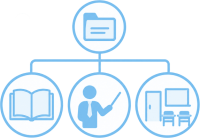
The Resources pane serves as the program's database. This is where you define terms (semesters), days, time scales or periods, courses, groups, students, instructors, rooms, and equipment. Resources can be entered manually, one at a time, or imported, as described in the final chapter of this guide. This section explains the purpose of each resource type, how to create and manage resources, how to edit their properties, and the meaning of each property.
4. Activities

Activities are the building blocks of the schedule. An activity brings together multiple resources that are scheduled at the same time. For example, a course, an instructor, a group of students, and a room can all be combined into a single activity. When an activity is scheduled, all of its participating resources are assigned to that time slot. In this sense, scheduling is essentially the process of determining when each activity takes place. This section explains how activities are entered in the Activities pane and describes the various properties available for activities.
5. Scheduling

Activities can be scheduled either by using drag and drop or by defining a recurrence pattern, which specifies the days of the week, start and end dates, and start and end times. This section describes the steps required to schedule activities using both methods. It also explains how to move, copy, and delete existing cells (a cell represents a single scheduled occurrence of an activity), as well as how to edit their properties.
6. Conflicts

A conflict occurs when two activities are scheduled in a way that causes them to interfere with one another. The most common type of conflict is a double-booked resource, such as a room assigned to two activities at the same time. The program continuously monitors the schedule and automatically warns you whenever a conflict is created as a result of a change you make. This section explains the different types of conflicts, the Conflicts Window (the warning displayed when a conflict is detected), and the Conflicts Pane (which provides a list of all conflicts currently present in the schedule).
7. Changes

In most academic institutions, the schedule is planned in advance before the semester begins. This is the purpose of Planning mode (the button located in the bottom-right corner of the screen). Once the semester is underway, however, daily adjustments may be required due to unforeseen circumstances, such as instructor absences or other unexpected events. By switching to Changes mode, you can easily record and manage these day-to-day modifications. This section explains how to use Changes mode and describes the process in detail.
8. Reports
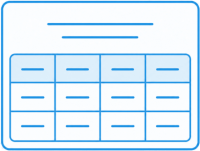
A report is a tabular view of information organized into rows and columns. The program can generate various types of reports based on the data you have entered and the activities you have scheduled. This section provides an overview of all available report types and explains how to filter and sort data, customize report content, and adjust the appearance of reports.
9. Printing and Exporting

The schedule and reports can be printed or exported in a variety of formats. The graphical schedule can be exported as a PDF document, image, website, or slideshow presentation. Text-based reports can also be exported to files such as CSV, which can then be opened in spreadsheet applications like Excel. This section explains how to print and export data and describes the available printing and export options.
10. Importing Data
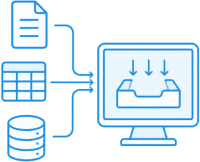
The software includes a powerful data import feature. You can import both CSV and XML files. The program can accommodate virtually any data format, because during the import process you specify the type of data contained in each column or field of the imported file. This section explains how to import resources, activities, and even an entire schedule.
11. Working Online
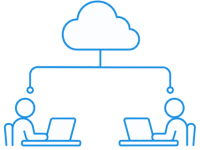
When you subscribe to the program, you receive the credentials for your server. Before you can begin working, you must connect to this server from within the application. This section explains how to connect to the server, create a new file or upload an existing one, and manage the users who are authorized to access the same server.
12. Subscription

Our software is provided as a cloud-based service and therefore requires a subscription. This chapter answers frequently asked questions about our subscription model and the cloud-based nature of the software. It also explains the concept of concurrent users, which determines how many users can work on the same server simultaneously and how this affects the subscription cost.